1 Getting started
ShiftWall replaces the paper schedule on the wall and the group text that goes with it. You build each week on a screen instead of a spreadsheet. One button sends every person their own shifts. Employees open it on their phones; there is no app to install, just a web address.
There is no sign-up page anywhere. The owner creates every account and hands each person a one-time password. If you weren't given one, ask whoever runs your schedule.
2 Installation
You install ShiftWall yourself, and it is genuinely a follow-the-steps job — no terminal, no code, about twenty minutes, most of it waiting on an upload. The full illustrated walkthrough ships with the software; here is the whole shape of it:
- Make a database. In your hosting panel, create a MySQL database and a user, and note the three names it gives you.
- Upload the zip and extract it — one file, into a
folder that is not inside your public web folder. This is the
one step people rush past: only ShiftWall's
publicfolder may face the internet. - Point your web address at that public folder. A
subdomain like schedule.yourstore.com with its document root
set to
…/shiftwall/public. - Fill in the settings file. Copy
.env.exampleto.env, paste in the three database names, your web address, and a long random string on theINSTALL_TOKENline. - Visit the setup address.
your-address/install/THAT-RANDOM-STRINGbuilds the tables, creates the owner account, and shows the owner's password exactly once. Then delete the token line — the page ceases to exist. - Add the two cron lines from the install guide, so published schedules actually send.
- Sign in. The setup walk-through (next chapter) takes it from there.
What the hosting needs
Any panel or none — cPanel, Plesk, DirectAdmin, CyberPanel, or a plain Linux VPS you manage yourself. The actual requirements:
- PHP 8.3 or newer, with the standard extensions every mainstream host ships (mbstring, openssl, pdo_mysql, curl, zip, fileinfo).
- A MySQL or MariaDB database. Small teams can run on SQLite instead — one file, no database server at all.
- A web server you can point at a folder — Apache works out of the box (the rules ship with it); Nginx needs the standard six-line Laravel site block, included in the install guide.
- HTTPS — a free Let's Encrypt certificate is fine, and most panels issue one with a click.
- Two cron lines so published schedules actually send, plus the ability to send email (your host's own mail or any SMTP login).
Just as important, what it does not need: no Node on the server, no Redis, no Docker, no third-party services, nothing metered. Windows hosting is the one thing I'd steer you away from — Linux hosting of any flavor is the happy path.
Don't have hosting yet? I recommend On Budget Services shared hosting — cPanel, the right PHP, and it's what I run my own sites on.
The complete walkthrough covers every step above in full detail — the exact panel screens, the settings file line by line, the Nginx block for VPS setups, and a troubleshooting section for everything that ever actually goes wrong. On panel hosting, no terminal is required at any step.
3 First-run setup
The first time the owner signs in, ShiftWall walks you through four short steps. Everything except one choice can be changed later, and the walk-through tells you which one.
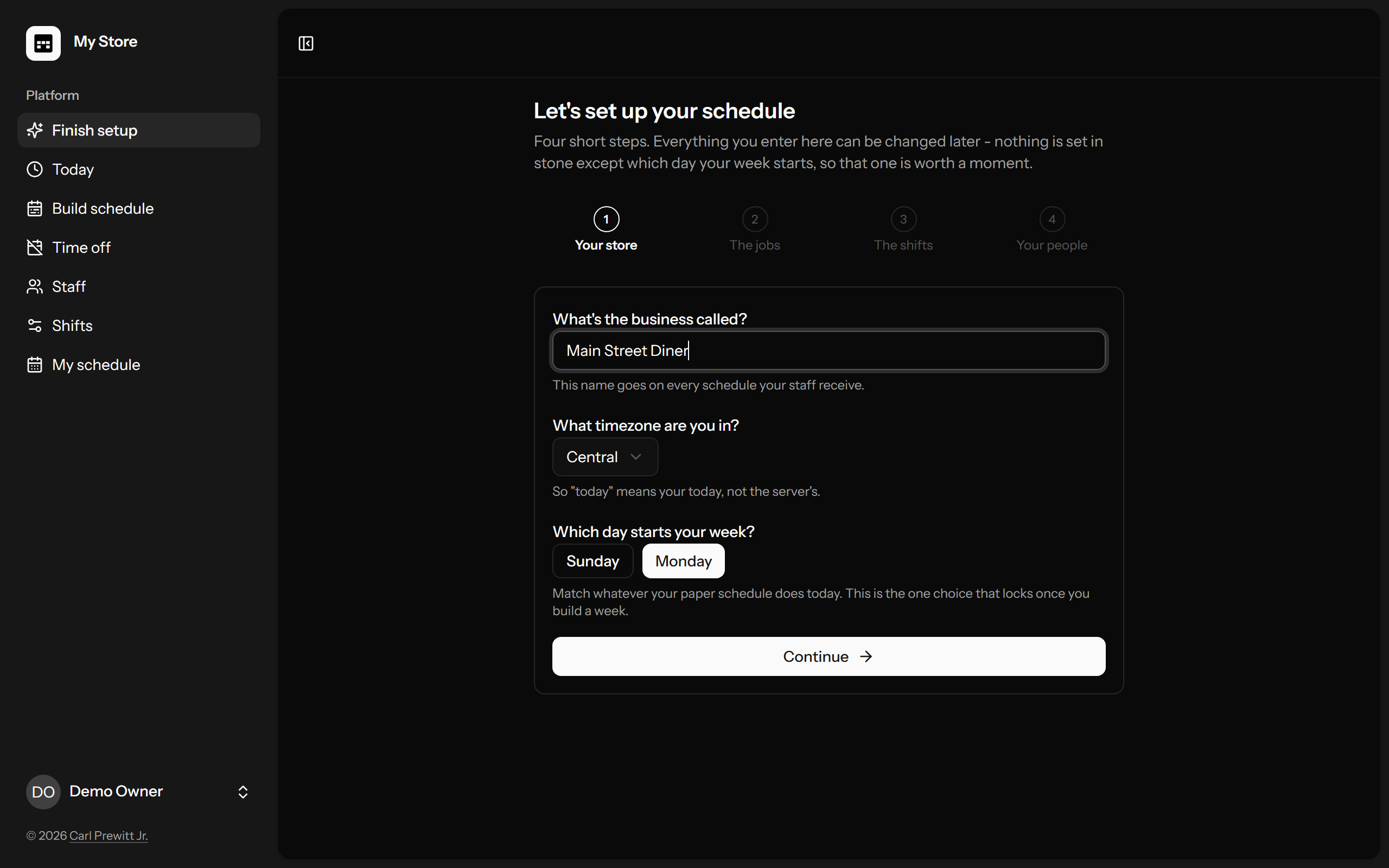
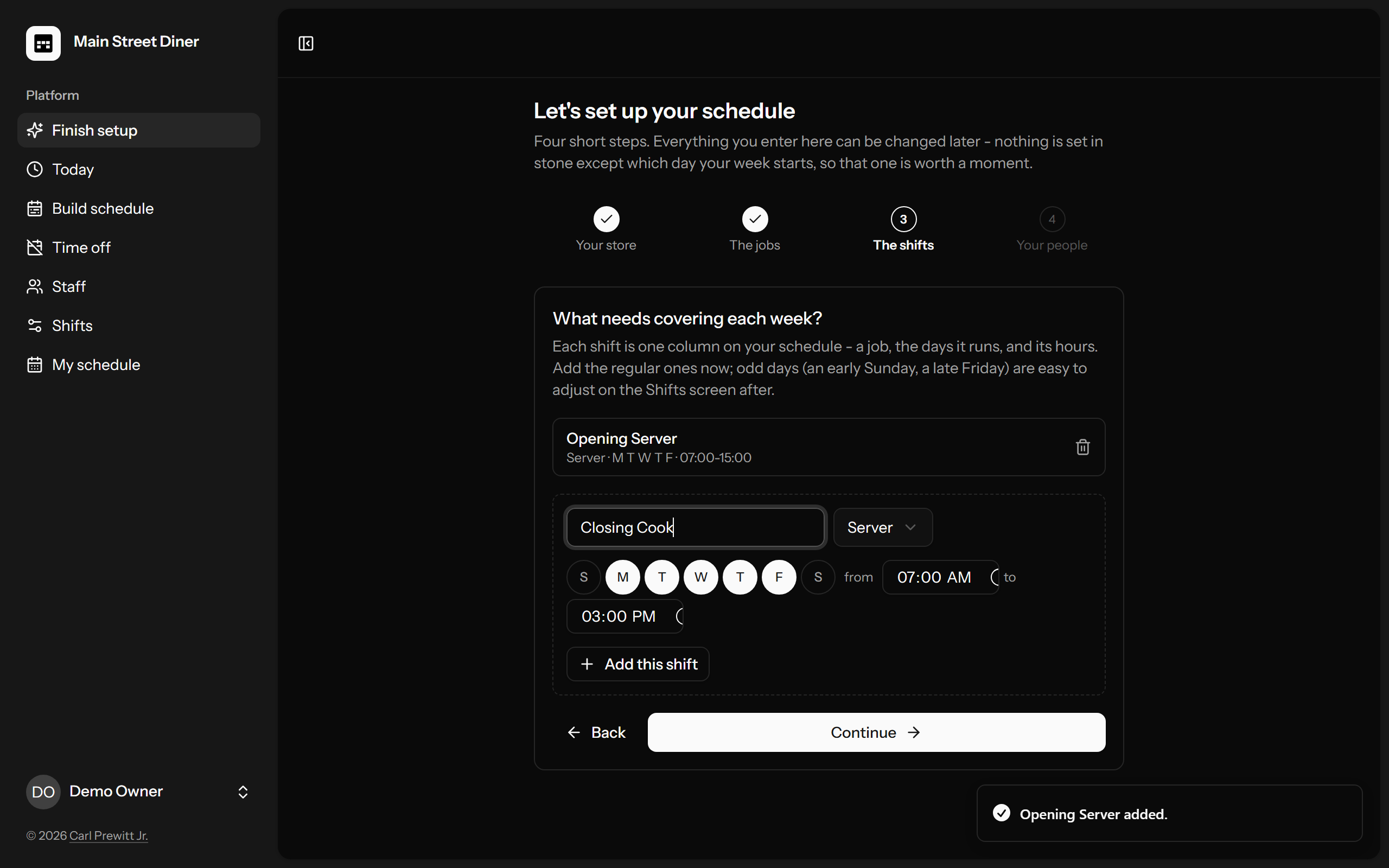
Step 2 lists the jobs people do (Cashier, Cook, Server — your words). Step 4 adds your first employees, each with a one-time password ready to text. Press Finish setup and you land on your first empty week.
4 Building the week
Days run down, shifts run across, exactly like the paper grid — that's on purpose. Click any cell and ShiftWall offers the people who fit: qualified for that job, not already working, not away. Their weekly hours sit next to each name so you can spread the work without arithmetic.
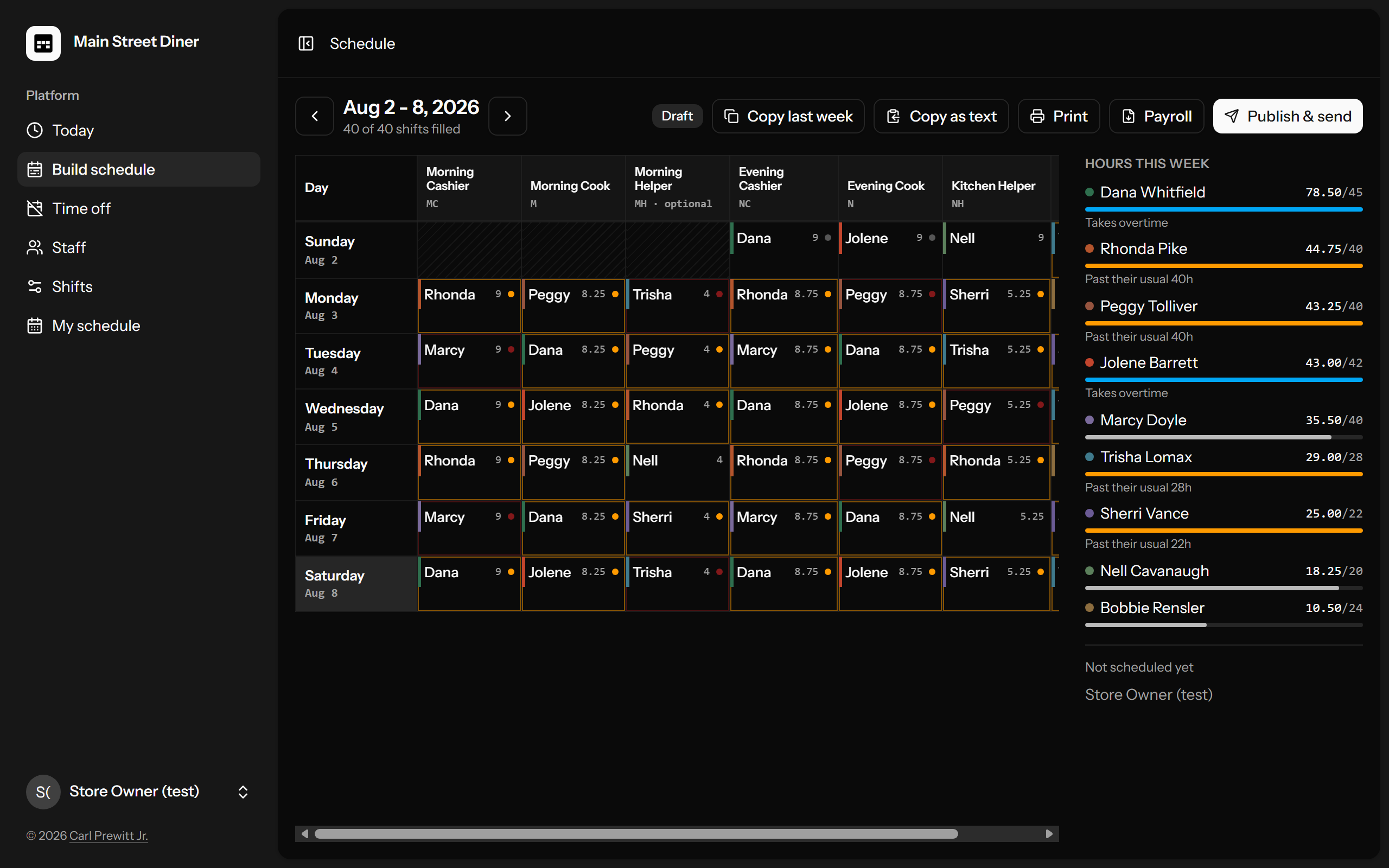
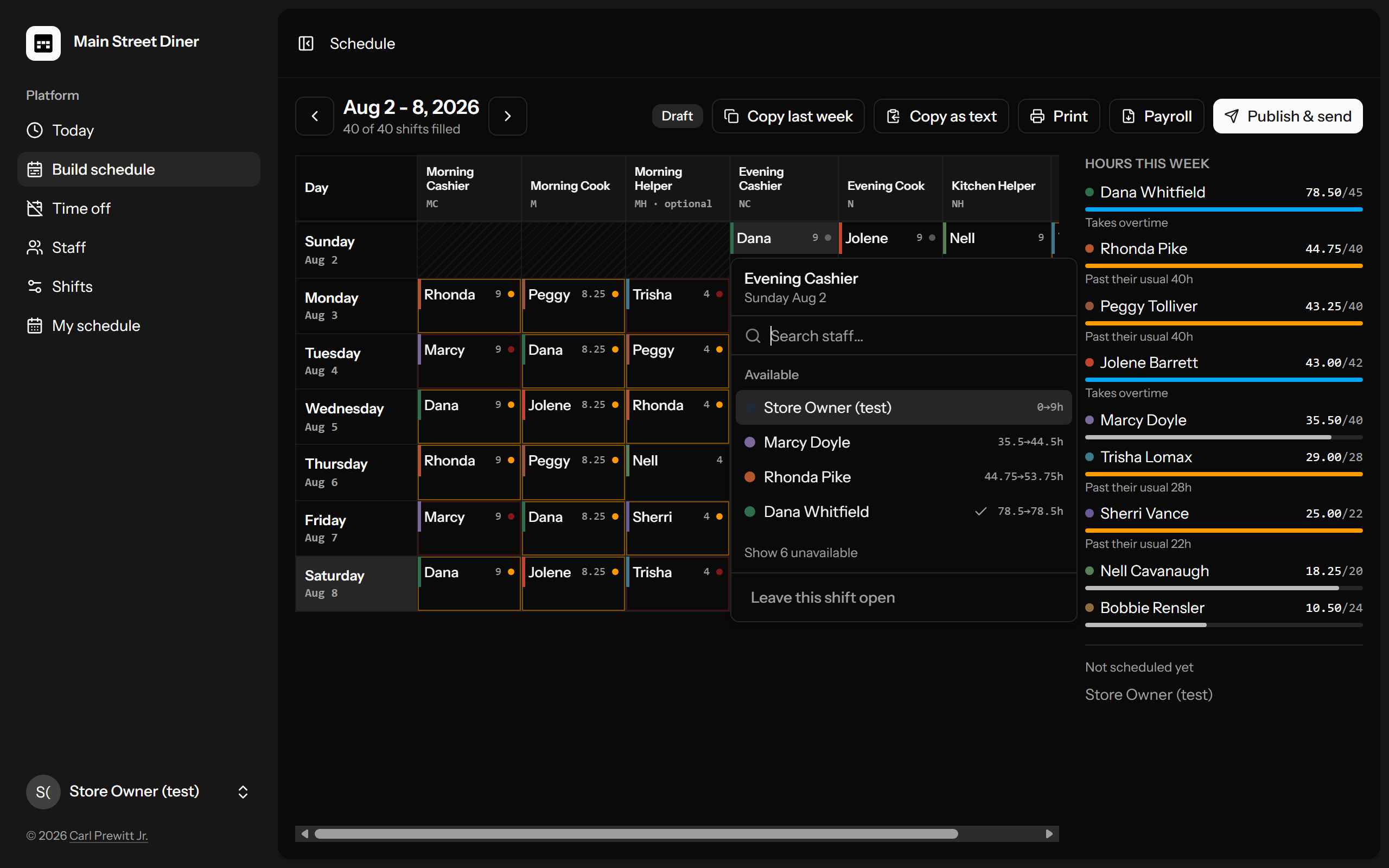
Copy last week fills empty cells from the week before, skips anyone who has since asked off, and never overwrites your work. Publish & send messages every person their own shifts. Republishing messages only the people whose shifts changed, and says what changed.
5 Call-outs & cover
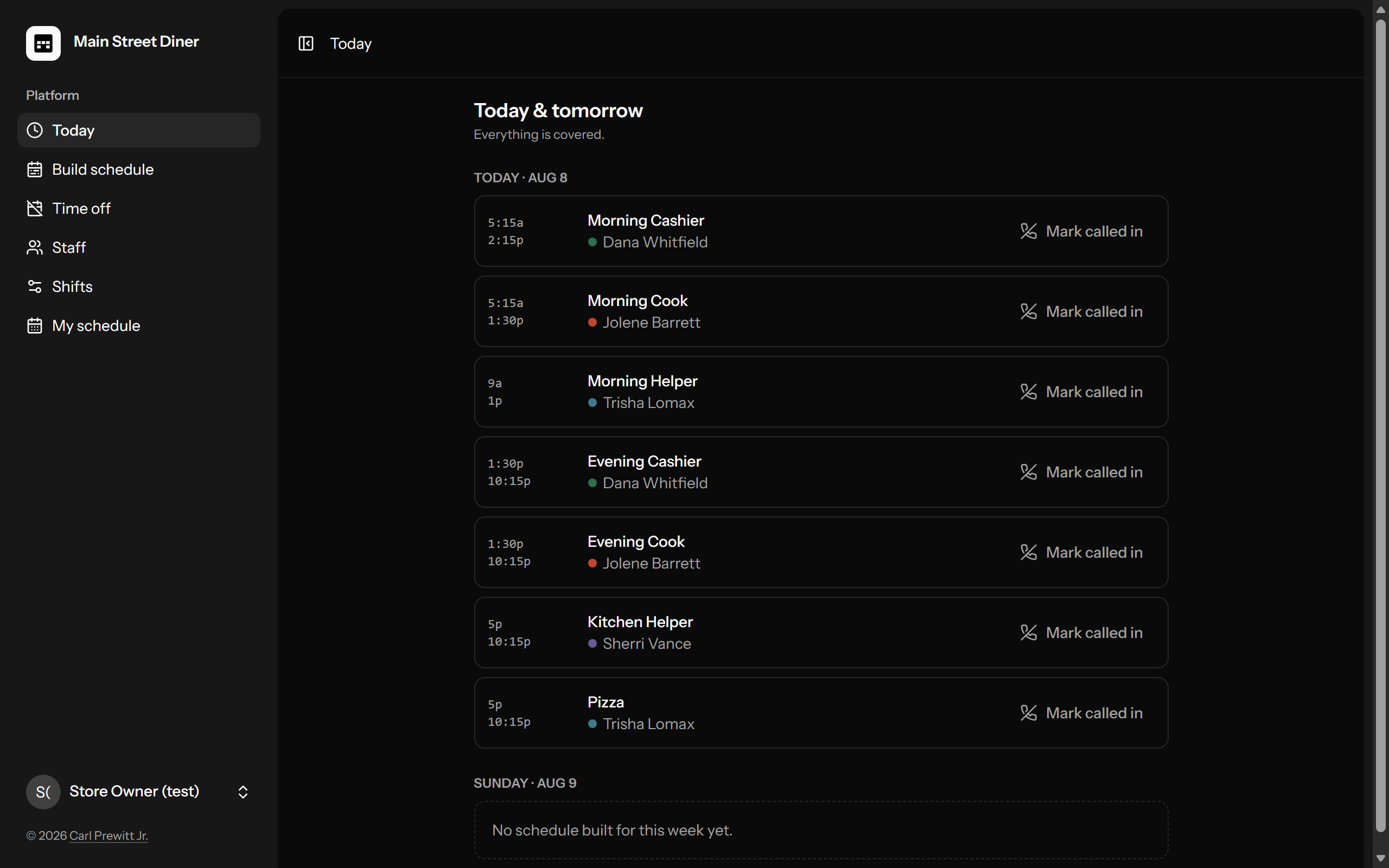
The Today screen is for the bad afternoon. It shows who is on right now and tomorrow. When somebody calls in sick, press Mark called in on their shift, and a list appears underneath: everyone free and able to take it, with their hours. Tap a name — that one person gets the message. The history keeps who called out and who covered.
6 Time off
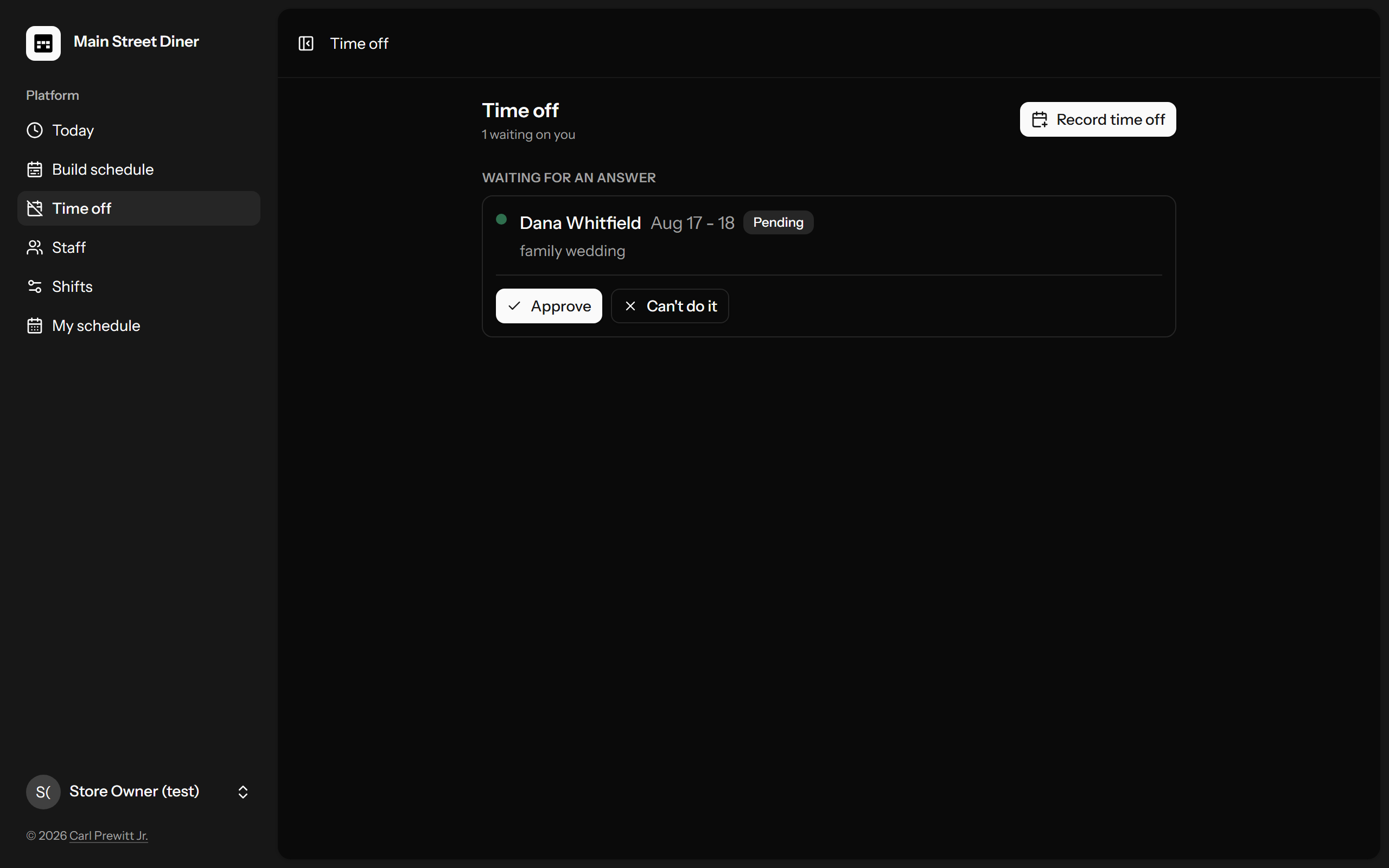
Employees ask from their phone. You approve or decline with a reason, and they're told automatically. From then on the builder sets them aside on those days — with the reason showing — and their name appears on the day column, so the answer to "who's away this week?" is always where you're already looking.
7 Staff & passwords
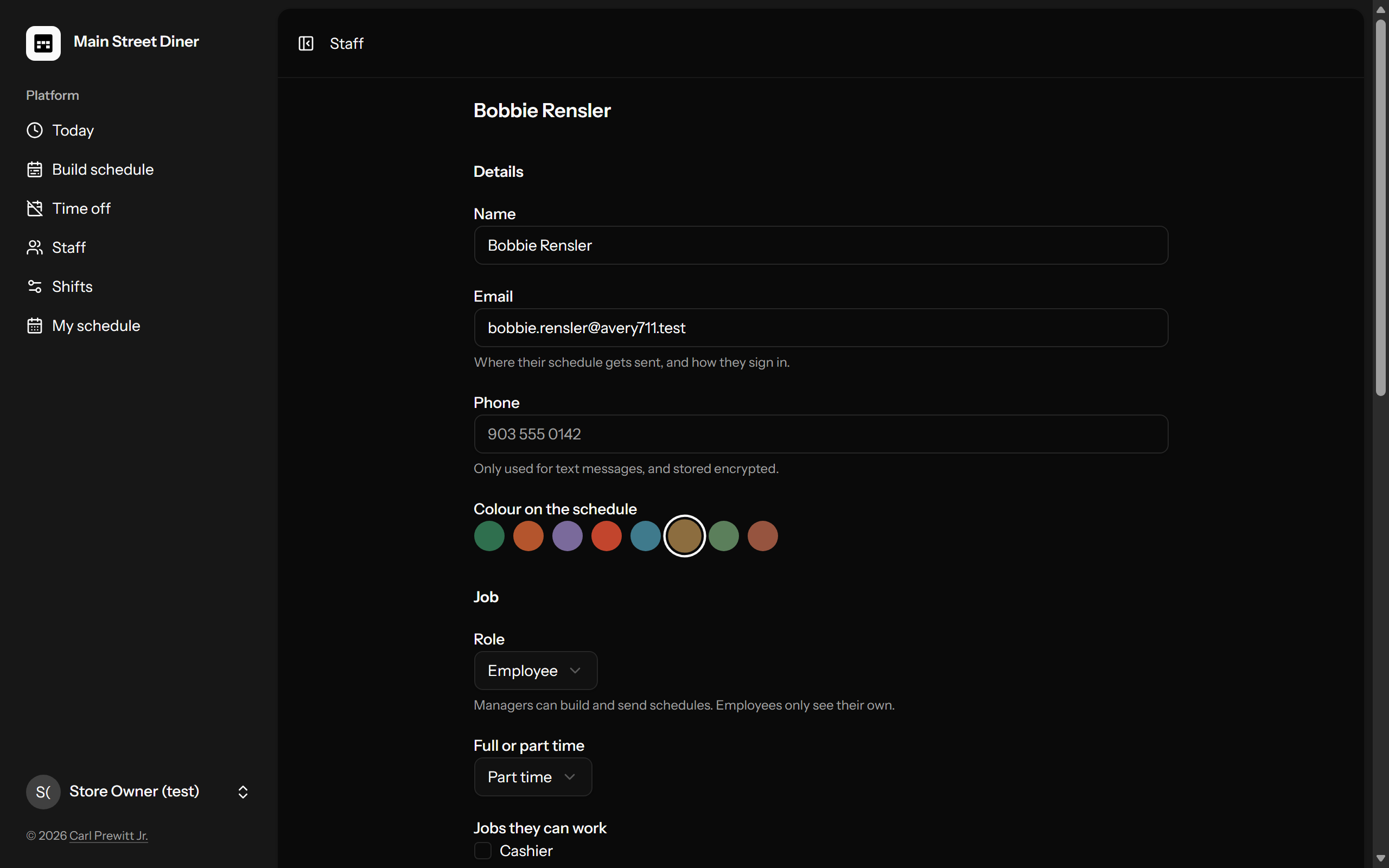
One page per person: the jobs they can work, the shifts or days they never work, their usual hours, and whether going over is a warning or just a note because they take overtime. Nobody is ever deleted — people who leave are taken off the schedule and their history stays.
8 Shifts & jobs
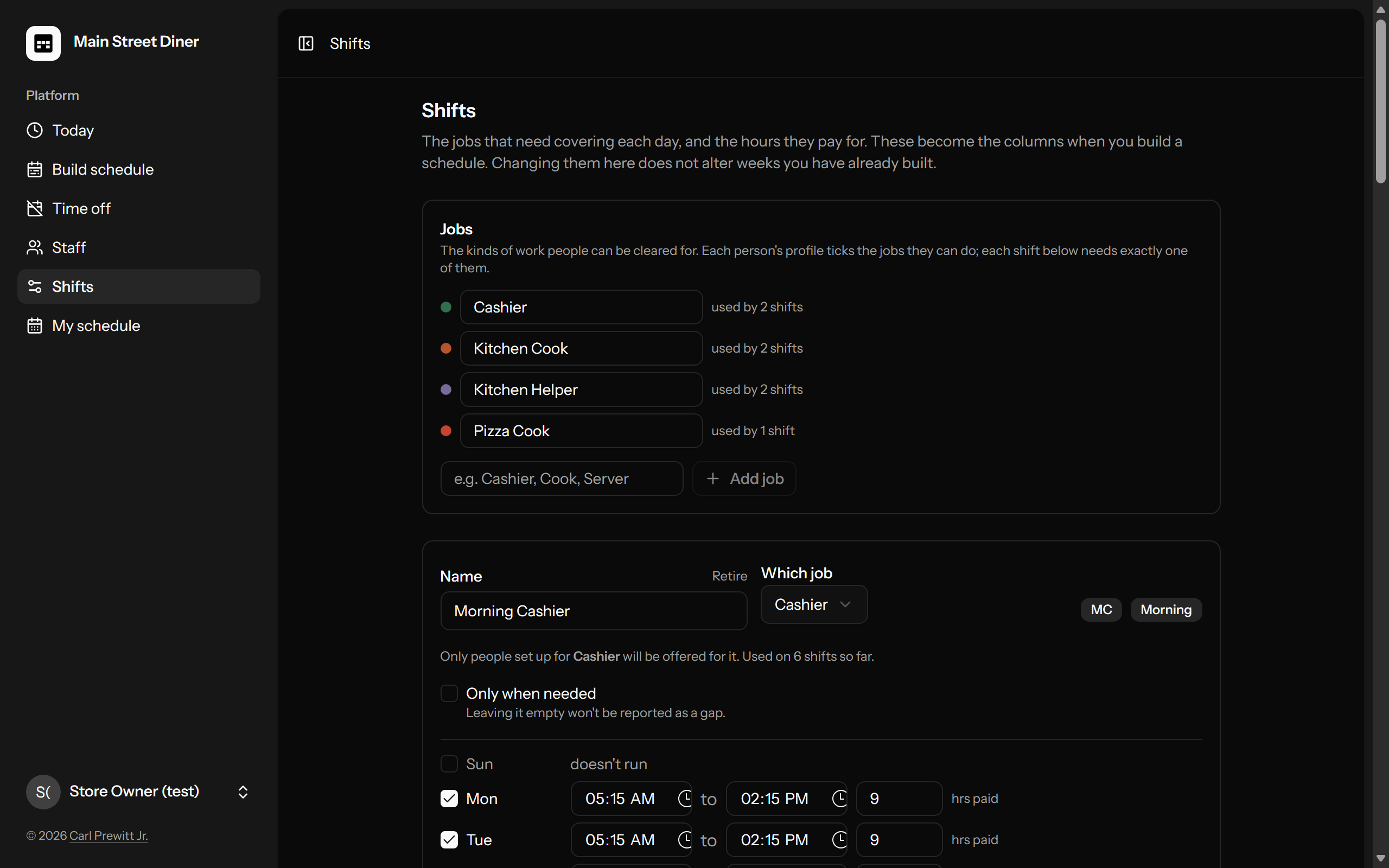
The owner's screen for the shape of the store: which jobs exist, which shifts exist, the days each one runs, and the paid hours it's worth. Add a shift and it appears ready to shape; retire one and every week it was worked in keeps it. Changing times here never rewrites weeks you already built.
9 Print & payroll
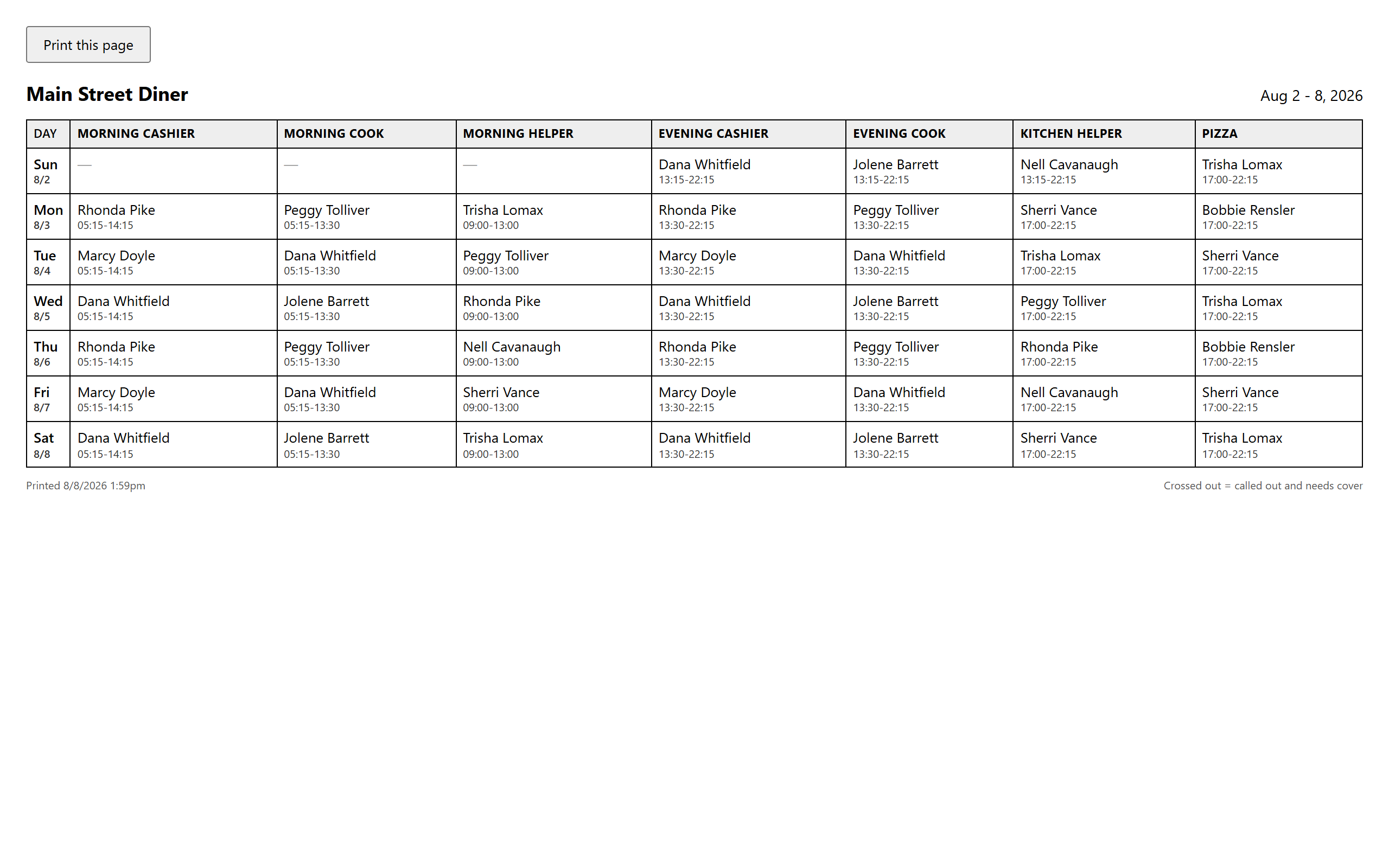
Old habits get doors, not walls. Print makes a clean black-and-white week for the wall by the register. Payroll downloads each person's hours per day as a spreadsheet, already added up, with called-out shifts earning nothing automatically. Copy as text pastes the whole week into your group thread.
10 For employees
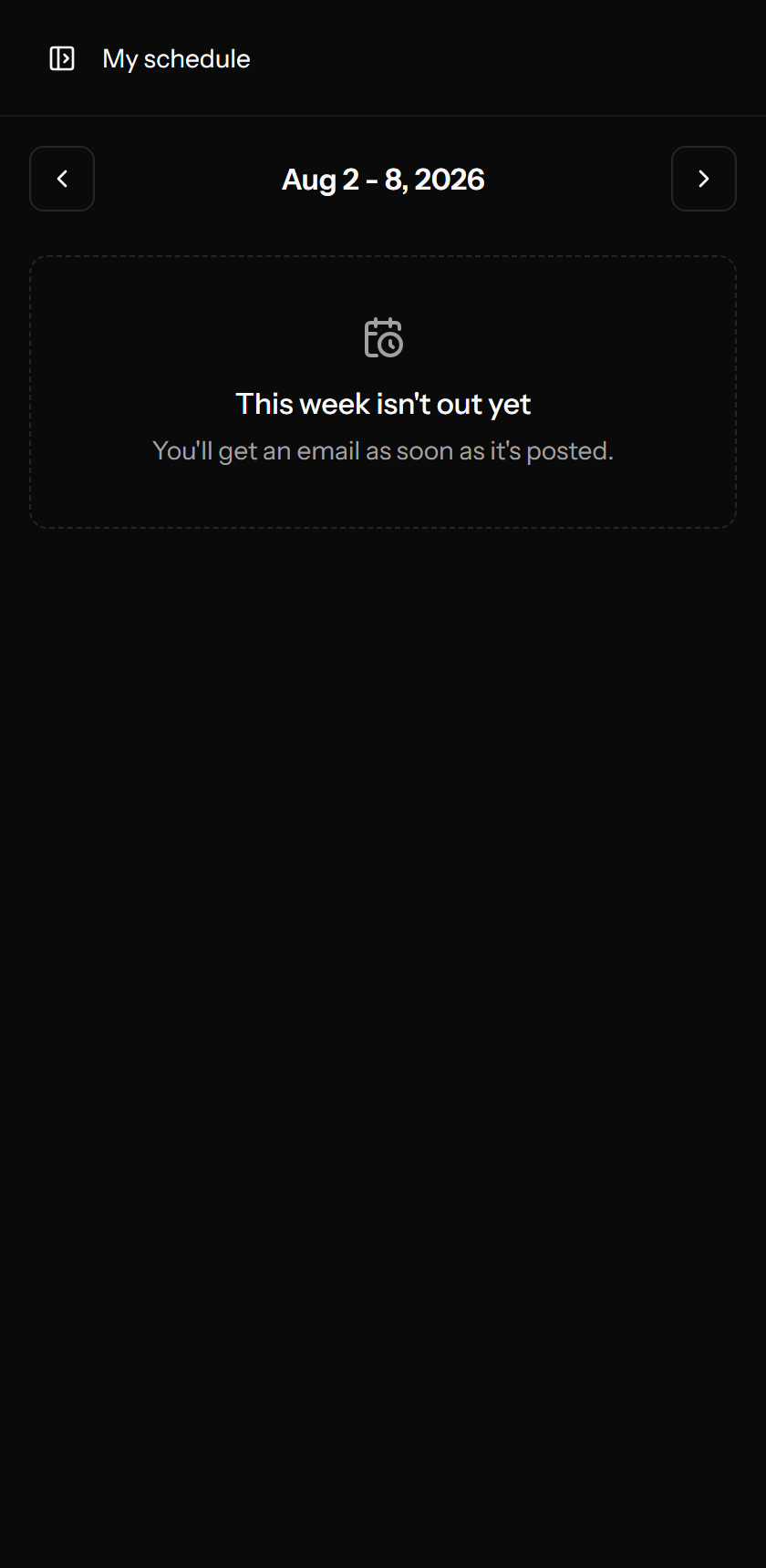
They see two things: their own schedule, and time off. Their shifts come first, big and clear, with the week's total. If the week isn't published yet, the page says so and promises a message when it's out — nobody plans around a half-built draft.
11 The full list
Everything ShiftWall does today, in one place. If it isn't on this list, it doesn't do it — ask me rather than assume.
Building the week
- Week grid matching your paper schedule — Sunday or Monday start, your choice
- Click-to-fill picker: qualified & available people first, best fit on top
- Everyone else set aside with the reason, one click to override with a note
- Drag a person from one cell to another
- Copy last week into empty cells — never overwrites, skips people now away
- Running hours per person as you build, amber past their usual
- Live warnings: over hours, double shift, short turnaround between shifts, same slot as last week, works-a-day-they-asked-off, under-18 hour rules, still in training
- Warnings never block — every one can be overridden, with your reason kept
Publishing & messages
- One button publishes and messages each person their own shifts only
- "You're not on this week" told too — silence isn't a schedule
- Republishing messages only the people whose shifts changed, saying what changed
- A moved shift reads as a move, not a delete plus an add
- Email built in via your hosting — no third-party service, nothing per-message
- Copy the whole week as plain text for a group thread
The day itself
- Today screen: everyone on now and next, at a glance
- Mark a call-out; see free-and-able cover candidates with their hours
- One tap messages the chosen cover — the team is never blasted
- Undo when they turn up after all; attendance history kept
Time off
- Requests from any phone; whole or part days
- Approve, or decline with a reason they see — messaging automatic
- Clash warning when they're already scheduled that day
- Managers can record time off on someone's behalf
- Requested days set the person aside in the builder, reason shown
People
- Owner, manager and employee roles — managers can't touch the owner's account
- Jobs each person can work, a usual job, and training flags
- Never-works rules: shifts or weekdays somebody truly never does
- Usual weekly hours and a speak-up threshold per person
- "Takes overtime" trust flag turns warnings into calm notes
- Hourly rate visible to the owner alone
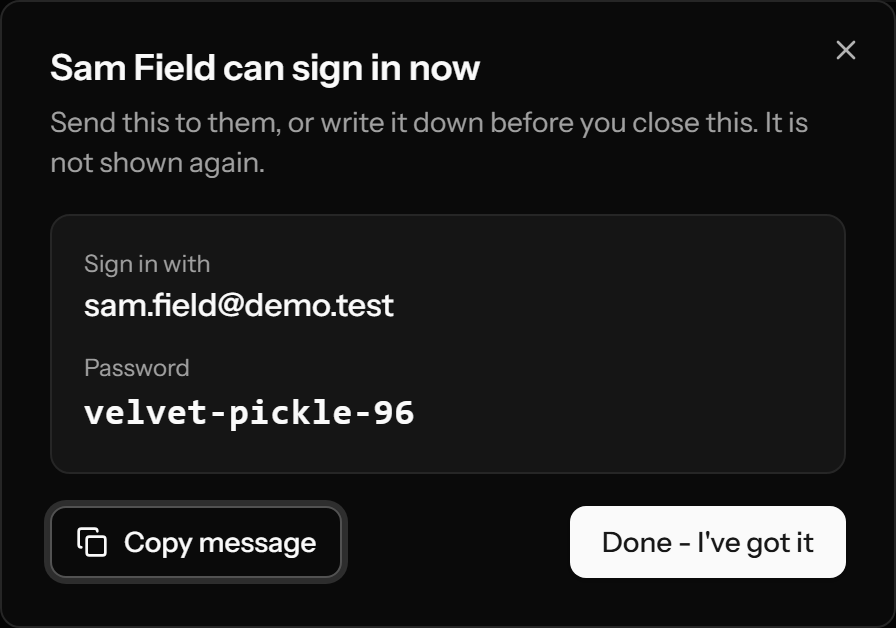
- One-time passwords created by you — no self-signup exists anywhere
- Password reset that shows the new password exactly once, ready to text
- Deactivate keeps every shift ever worked; reactivate any time
- Sign-in history per person: device and time
The store's shape
- Define your own jobs and shifts — any names, any days, any times
- Different hours per weekday, paid hours separate from clock hours
- "Only when needed" shifts that never count as gaps
- Retiring a shift keeps it in every week it was worked
- Ten-minute first-run walk-through builds all of this from empty
Paper & payroll
- Printable monochrome week for the wall
- Payroll spreadsheet: hours per person per day, totalled, call-outs excluded
Security & ownership
- Self-hosted on your cPanel: your data, your database, your domain
- Two-factor sign-in and passkeys supported
- Invisible to search engines; AI and archive crawlers refused by name
- Every account action audit-logged
- No third-party services required; nothing metered; no per-seat fees
- 180 automated tests gate every release